
Quick start · No code
WhatsApp with Twilio
Twilio sends Ledger a copy of every WhatsApp message event, in and out. Your assistant and your webhooks stay exactly as they are.
You need: your Ledger invite (or a Ledger sign-in), and access to the Twilio Console account that holds your WhatsApp sender.
Quick start
Open the WhatsApp tabIN LEDGER
Go to setup step 3, Connect your assistant. Select the WhatsApp · Twilio tab (1), then Create my WhatsApp link (2).
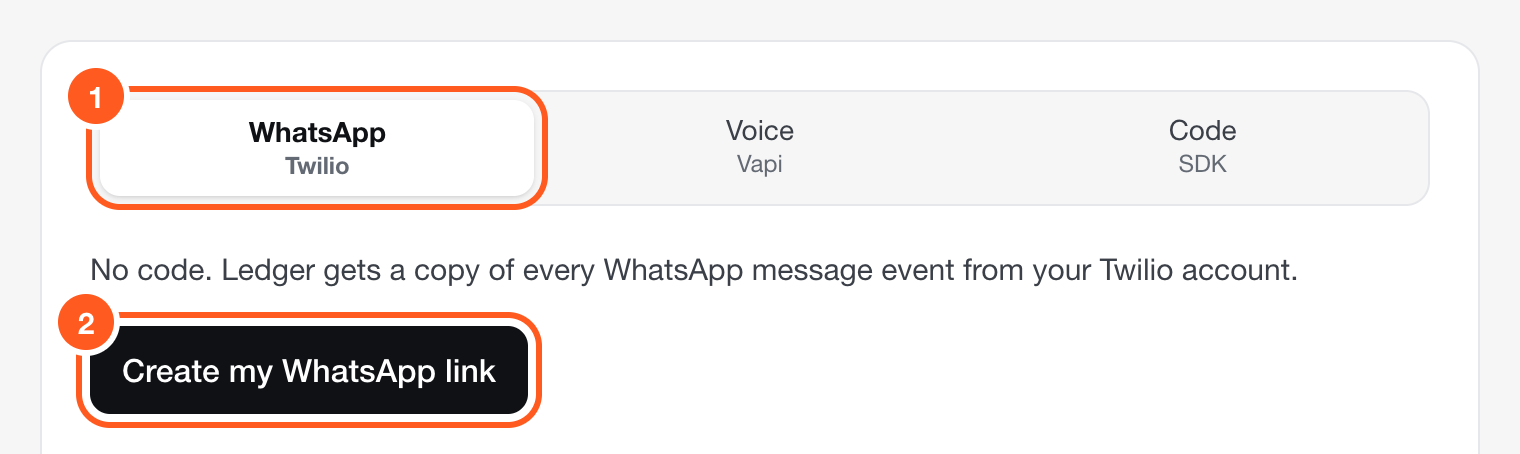
Setup, step 3. Already set up? The same panel is in Settings → Keys. Copy your webhook URL. It is shown once.IN LEDGER
Ledger shows a URL like the one below and keeps only a fingerprint of it. Copy it now and keep it somewhere safe until step 3 is done.
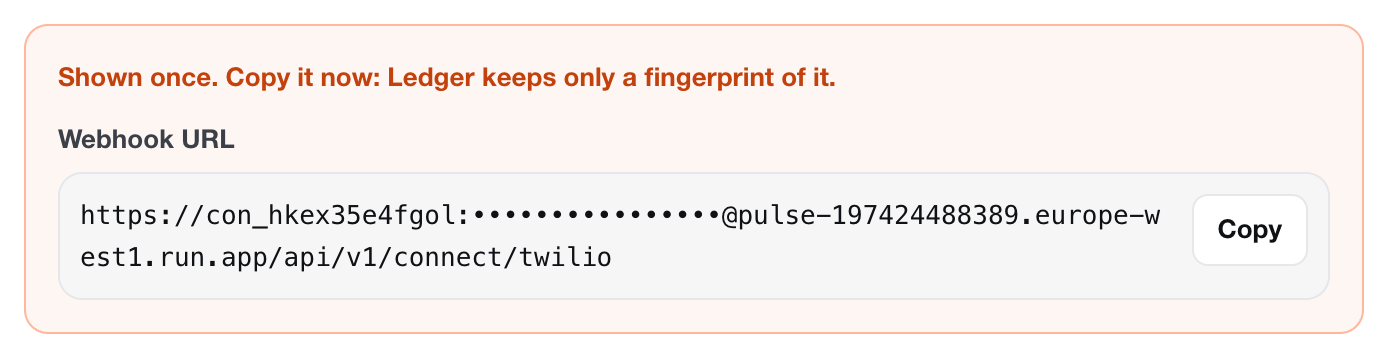
The secret part is hidden in this picture. Yours is shown in full. The URL has this shape. The part before the
@is your connector id and its secret:https://con_…:…@ledger.100xnative.com/api/v1/connect/twilioCreate the sink and the subscriptionIN TWILIO
In your Twilio Console:
- Sign in to the Twilio Console with the account that holds your WhatsApp sender.
- Open Event Streams → Manage, then select Create → New sink.
- Enter the description Ledger, choose the sink type Webhook, then select Next step.
- Paste your Ledger webhook URL (step 2) into Destination, set Method to POST and leave Batch events off. Select Finish. Skip the optional “validate sink” step.
- Select Create subscription. Name it Ledger and choose the Ledger sink.
- Under Product groups → Messaging, tick Inbound Message → Received and Outbound Message → Sent, each on the latest schema version. Delivered and Read are optional.
- Select Create subscription.
- Send a WhatsApp message to your business number. Ledger receives it within seconds.
Your WhatsApp replies keep working exactly as before. Event Streams sends Ledger a copy of each message event and changes nothing in your existing webhooks.
Watch the light turn greenIN LEDGER
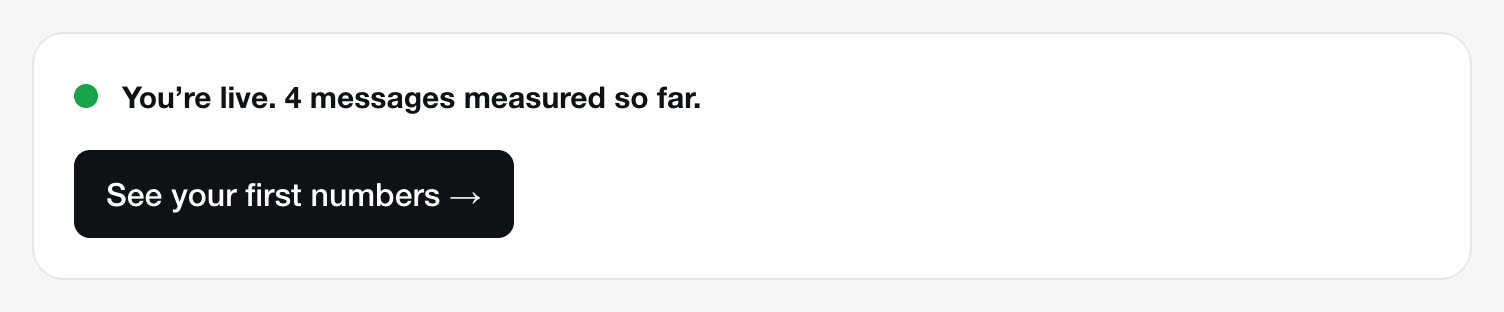
Back on the setup screen, the light turns green within seconds of your test message. Then select See your first numbers.
Good to know
- Count your wins. Twilio carries the conversation, not the result. Send each booking, lead or payment from your own system with
ledger.outcome()or the API. How. - Batches are fine. Leave Batch events off as the steps say; Ledger also accepts batches if you turn it on.
- Delivered and Read are optional. When ticked, they are merged into the same message, never counted twice.
- WhatsApp cost. Twilio’s events carry no price, so Ledger counts messages × a rate per message: USD 0.005 by default, Twilio’s WhatsApp fee. Meta’s own fees vary by country and category; ask us to set your rate if you want them included.
- Several numbers on one Twilio account? Ask us to limit Ledger to your WhatsApp sender numbers. Messages on the other numbers are then ignored.
- To stop: revoke the link in Settings → Keys, or delete the sink in Twilio. Revoked links stop at once.
How to know it works
1. The live light
Send a WhatsApp message to your business number from your own phone. Then look at the light under the connect panel in /setup. It checks every 3 seconds, by itself.

2. The status endpoint
Open https://ledger.100xnative.com/api/v1/status in the browser where you are signed in to Ledger. Or call it with an API key (create one in Settings → Keys; a connector token does not work here):
curl -s https://ledger.100xnative.com/api/v1/status \
  -H "Authorization: Bearer $LEDGER_KEY"
A working connection answers with counts that go up as you test:
{
  "ok": true,
  "tenant": "your-workspace",
  "firstEventAt": "2026-10-25T15:44:03.420Z",
  "lastEventAt": "2026-10-25T15:44:03.419Z",
  "counts": { "conversations": 1, "messages": 4, "llmCalls": 0, "calls": 0, "outcomes": 0 }
}
messages goes up by one per message, in and out. conversations goes up once per customer per 24 hours.
Troubleshooting
- “401 unauthorized”
Ledger did not recognise the secret. It was mistyped, cut short, or revoked.
- The URL in Twilio must keep the
con_…:…@part before the host. Paste it again from Ledger, in one piece. - Ledger shows each secret once and cannot show it again. Create a new one in Settings → Keys, then revoke the old one.
- The URL in Twilio must keep the
- No data: the light stays grey
- Check the subscription ticks Inbound Message → Received and Outbound Message → Sent.
- Twilio’s “validate sink” test event is accepted but not shown. Send a real WhatsApp message instead.
- The message must reach the WhatsApp sender of the same Twilio account that holds the sink.
- Open
/api/v1/status(above). If the counts move, data is arriving and the dashboard follows.
- Conversations are grouped wrongly
With Twilio, one conversation is one customer’s messages over 24 hours, counted from their first message. A customer who writes on Monday and again on Wednesday makes two conversations. That is by design.
- Vapi: my assistant already has a server URL
Vapi sends each event to one URL only. Do not replace yours with Ledger’s: keep it, and forward the end-of-call report from your own handler (path B, 5 lines). See path B on the Vapi page.
Stuck? Message us and a person from 100x answers, usually the same day.
Message us